How to download Instagram videos and photos with SnapClip
Wondering how to download Instagram videos and photos? Since Instagram doesn't support a download feature on their app, you need to use third-party tools like SnapClip. In this guide, I will show you how to easily use SnapClip to save any Instagram content in high quality.
Instagram Downloader is a browser-based tool developed by SnapClip. It allows you to quickly download high-quality Photos, Videos, Reels, Stories, Audio, and even Profile Pictures from Instagram to your device in just a few clicks, without needing to install any software.
Enjoy a seamless experience downloading Instagram content directly on your web browser. No extensions or software installations are required. Simply provide the link, and we will handle the rest for you.
Follow these simple steps to save photos, videos, Stories, Reels, and Profile Pictures from Instagram to your phone or computer:
Step 1: Copy the Instagram URL
Open the Instagram app or website, locate the specific post you wish to save, and tap the three-dot icon (●●●) found above the content. From the menu, select the Copy link option to save the URL to your clipboard.
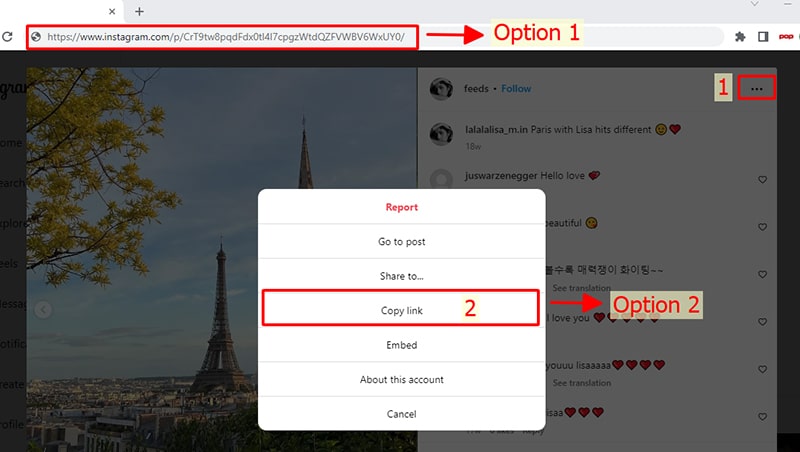
Step 2: Paste the Instagram link into SnapClip
Access the SnapClip.App website using any modern web browser (such as Chrome, Firefox, Safari, or Edge) on your device.
Paste the Instagram URL you just copied into the input field at the top of the page and click the Download button.
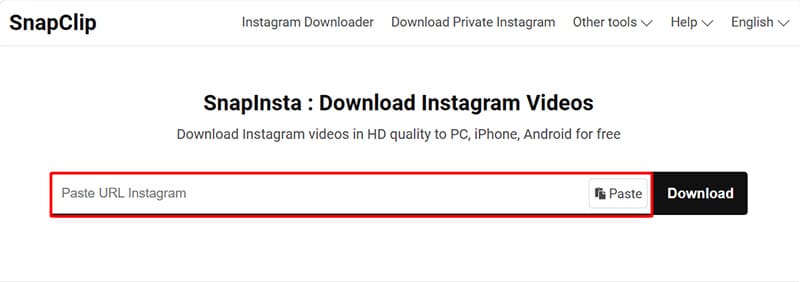
Step 3: Save photos and videos to your device
Once processed, your Photo or Video will appear. Simply click the Download Photo or Download Video button located directly below the preview to save the file to your device.
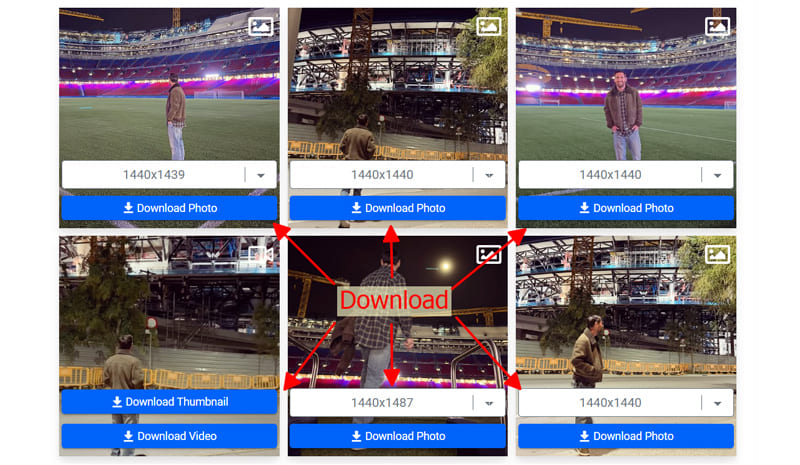
Success! You can now find your files in the "Downloads" folder of your device or within your browser's download history.